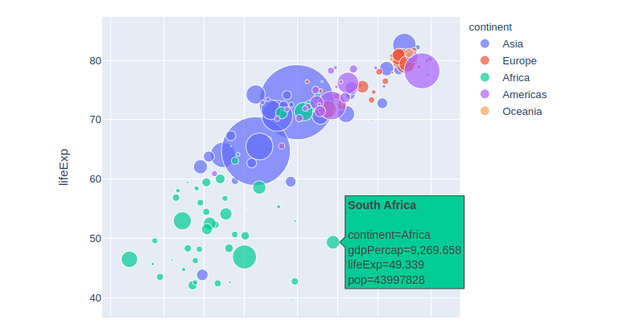
It is always desired to support blog posts with good visuals and the interactive plots are very good for exploration and a better understanding of the results and underlying data. Including interactive plots involves the usage of javascript for the given visualization library and makes embedding interactive figures not that straightforward. This post provides an exploration of methods used to embed interactive plot in jupyter notebook that is later transformed into an HTML webpage. The article is divided into three parts dedicated to major python plotting libraries: plotly, bokeh , and altair.
Quick Comparison
Before diving into details, here's a quick comparison of the methods covered in this article:
| Method | Notebook Preview | Blog Display | Complexity | Best For |
|---|---|---|---|---|
| Method 1 (Jinja2 template) | Shows twice | Works | Medium | Development with preview |
| Method 2 (to_html) | No preview | Works | Low | Production, simple cases |
| Method 3 (IFrame) | Via IFrame | Works | Medium | Complex plots, reusable assets |
| Bokeh (file_html) | Works | Works | Low | Statistical visualizations |
| Altair (native) | Works | Works | Low | Declarative, small bundle size |
Key trade-offs:
- Bundle size: Altair (Vega-Lite) has the smallest footprint (~100KB), Plotly and Bokeh are larger (~3MB)
- CDN dependency: All methods shown use CDN for JavaScript libraries, requiring internet connection
- Notebook preview: Method 2 won't show in notebook but works fine in the final blog
import plotly
from plotly import express as px

gapminder = px.data.gapminder()

fig = px.scatter(
    gapminder.query("year==2007"),
    x="gdpPercap",
    y="lifeExp",
    size="pop",
    color="continent",
    hover_name="country",
    log_x=True,
    size_max=60,
    height=480,
    width=600,
)
import json

plot_json = json.dumps(fig, cls=plotly.utils.PlotlyJSONEncoder)
from jinja2 import Template

template = """
<div id="plotly-timeseries"></div>
<script src="https://cdn.plot.ly/plotly-latest.min.js"></script>
<script>
var graph = {{plot_json}};
Plotly.plot('plotly-timeseries', graph, {});
</script>
"""
data = {"plot_json": plot_json}
j2_template = Template(template)

from IPython.core.display import HTML

# This will be visible in blog post
display(HTML(j2_template.render(data)))
The next cell contains only fig.show(). This is a preview (display() above do not render in a notebook) that can be either manually removed from the final version or can be filtered out using cell tags (remove_cell)
The plot below is not displayed in the notebook
import IPython

plotly_graph = fig.to_html(include_plotlyjs="cdn")
IPython.display.HTML(plotly_graph)
Method 3. Plotly figure to HTML and display in IFrame
This method saves the plot as a standalone HTML file and embeds it via IFrame. This is useful when:
- You want to reuse the same plot across multiple posts
- The plot is complex and you want to keep notebook size small
- You need the plot to be independently accessible
NOTE: This method requires the HTML file to be in the output directory. The code below writes directly to
docs/(the Pelican output). For a cleaner workflow, you could write to astatic/folder in your content directory and configure Pelican to copy it.
from pathlib import Path
file = "plotly_graph.html"

pth = Path("../../../../docs/")
with open(pth / file , "wt") as f:
    f.write(fig.to_html(include_plotlyjs="cdn"))
# iframe width and height should be little bit larger than those rendered by plotly
# Use root-relative path for deployed blog

from IPython.display import IFrame

IFrame("/plotly_graph.html", width=650, height=500)
# see: https://stackoverflow.com/a/43880597/3247880
import pandas as pd
import numpy as np
import bokeh
from bokeh.plotting import figure
from bokeh.models.sources import ColumnDataSource
from bokeh.io import output_notebook
from bokeh.models import HoverTool
from bokeh.embed import file_html
from bokeh.resources import CDN

print("Bokeh version:", bokeh.__version__)

output_notebook()

df = pd.DataFrame(np.random.normal(0, 5, (100, 2)), columns=["x", "y"])
df.head(2)
source = ColumnDataSource(df)
hover = HoverTool(tooltips=[("x", "@x"), ("y", "@y")])
myplot = figure(
    width=600,
    height=400,
    tools="hover,box_zoom,box_select,crosshair,reset",
)
_ = myplot.scatter("x", "y", size=7, fill_alpha=0.5, source=source)
# show(myplot, notebook_handle=True)
from IPython.display import HTML, display

myplot_html = file_html(myplot, CDN)
display(HTML(myplot_html))
Altair
For Altair displaying frontends refer to the documentation: Displaying Altair Charts. By default, both Jupyter Notebook and JupyterLab will render if there is a web connection. See the documentation for offline rendering.
import altair as alt
from vega_datasets import data

source = data.cars()

alt.Chart(source).mark_circle(size=60).encode(
    x="Horsepower",
    y="Miles_per_Gallon",
    color="Origin",
    tooltip=["Name", "Origin", "Horsepower", "Miles_per_Gallon"],
).interactive()
import altair as alt
import pandas as pd

# HTML renderer requires a web connection in order to load relevant
# Javascript libraries.
alt.renderers.enable("html")
source = pd.DataFrame(
    {
        "Letter": ["A", "B", "C", "D", "E", "F", "G", "H", "I"],
        "Frequency": [28, 55, 43, 91, 81, 53, 19, 87, 52],
    }
)

alt.Chart(source).mark_bar().encode(
    x="Letter",
    y="Frequency",
    tooltip=["Letter", "Frequency"],
).interactive()
Recommended Approach
For most blog posts with interactive plots, I recommend:
For simple plots: Use Method 2 (
fig.to_html()withdisplay.HTML()). It's the simplest approach and works reliably.For development/preview: Use Method 1 if you need to see the plot while editing the notebook. Accept the double-display trade-off.
For complex/reusable plots: Use Method 3 (IFrame) when you have plots that are very large or need to be shared across posts.
For declarative, lightweight visualizations: Consider Altair. It has the smallest JavaScript bundle and integrates cleanly with notebooks.
General tips:
- Always use
include_plotlyjs='cdn'to avoid embedding the full library in each page - Set explicit
widthandheightto ensure consistent rendering - Test your blog locally before publishing to catch any embedding issues
Performance Considerations
When embedding interactive plots, consider these performance factors:
| Library | JS Bundle Size (CDN) | Initial Load | Best For |
|---|---|---|---|
| Plotly | ~3.3 MB | Slower | Rich interactivity, 3D plots |
| Bokeh | ~2.5 MB | Medium | Statistical plots, dashboards |
| Altair/Vega-Lite | ~400 KB | Fast | Simple declarative charts |
Tips for better performance:
- Use CDN versions (
include_plotlyjs='cdn') to leverage browser caching - For multiple plots on one page, only include the library once
- Consider lazy-loading plots that are below the fold
- For static exports (PDF, email), use
fig.write_image()instead
Troubleshooting
Common issues and solutions:
Plot not showing in blog but works in notebook:
- Check if your static site generator strips JavaScript. pelican-jupyter should handle this.
- Ensure CDN URLs are accessible (no corporate firewall blocking)
IFrame shows blank:
- Verify the HTML file path is correct relative to the deployed site
- Check browser console for CORS errors
- Ensure the file was copied to the output directory
Plot shows twice (Method 1):
- This is expected behavior. Use the
remove_celltag on thefig.show()cell if you don't want the preview in the final output
JavaScript errors in console:
- Clear browser cache and reload
- Check for version conflicts if using multiple plotting libraries
- Ensure you're not mixing inline JS with CDN versions
Updates:
- 2026-01-07: Added decision matrix, recommended approach, performance and troubleshooting sections
- 2026-01-07: Updated to account for recent changes in plotly and bokeh libraries